 SimSmsBox
Short answer: The passcode is a lock on the app on this phone — local, never uploaded, and unrecoverable if you forget it. The cloud password is two-step verification on the account — server-side, and resettable through your recovery email. Searching “how to reset my Telegram passcode” and expecting an email is the single most common mistake here: no email is coming, because Telegram never knew the passcode in the first place.
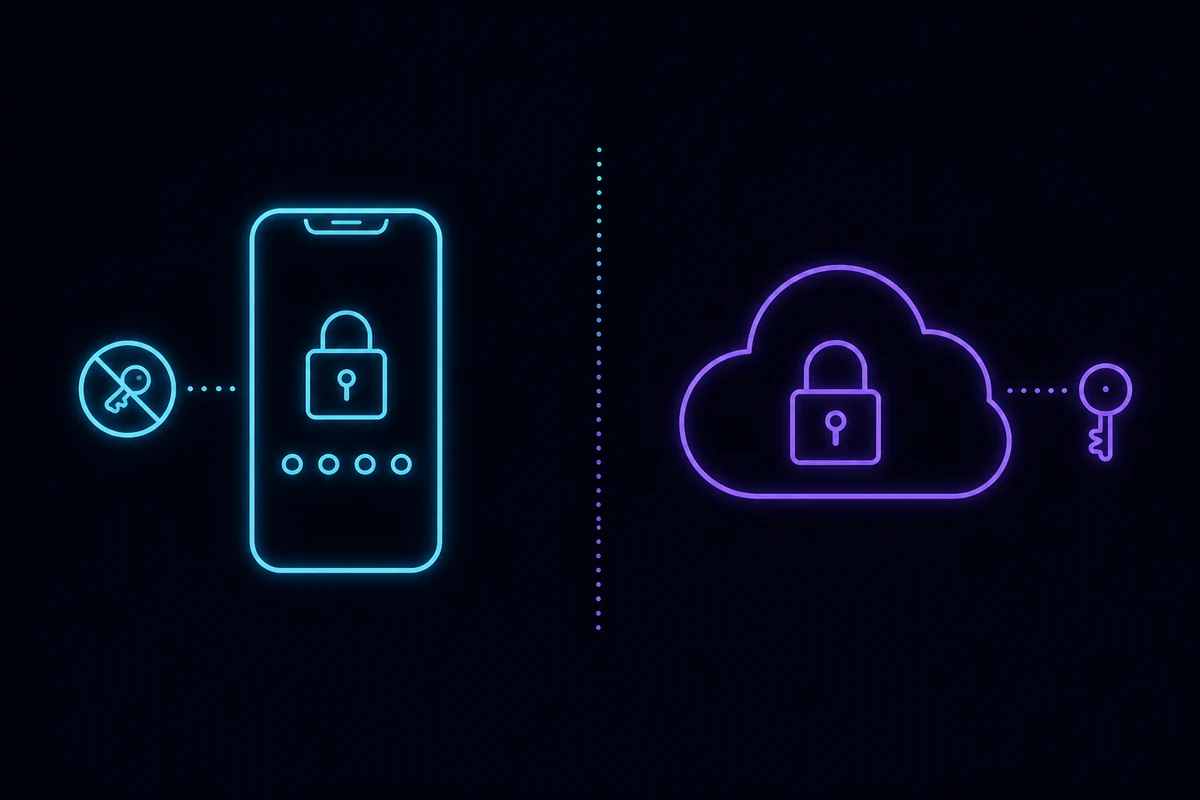
Two locks, two layers
Think of it as a front door and a safe. One of them Telegram installed and holds a spare key for. The other you installed yourself, inside your own house, and there is no spare.
| Passcode (app lock) | Cloud password (two-step verification) | |
|---|---|---|
| What it protects | The app on one device | The account, everywhere |
| Where it is stored | On that device only | Telegram’s servers, as a one-way verifier |
| When you are asked for it | Every time you open the app after auto-lock | Only when signing in on a new device |
| Syncs to your other phones | No | It is the same account, so yes |
| Forgot it? | No recovery. Reinstall the app | Reset via recovery email |
| Set from | Privacy and Security → Passcode Lock | Privacy and Security → Two-Step Verification |
The cloud password has its own guide — what is the Telegram cloud password — so the rest of this page is about the one nobody documents: the passcode.
Setting a passcode
Settings → Privacy and Security → Passcode Lock → Turn Passcode On.
You will be asked for a four-digit PIN by default. Before you accept that default, tap the option to switch to a custom alphanumeric passcode. Four digits is ten thousand combinations, which is fine against a stranger who finds your phone on a bus and useless against anyone who has watched you type it.
Once it is on, three more settings appear on the same screen:
- Auto-Lock — In 1 minute, 5 minutes, 1 hour, or 5 hours. The default is usually the longest option, which mostly defeats the point. One or five minutes is the useful setting.
- Unlock with Face ID / Touch ID / fingerprint — worth enabling. Biometrics do not replace the passcode; they are a shortcut past it, and the passcode remains the fallback.
- Hide notification text (Android) — stops message previews appearing on the lock screen. This one matters more than people expect, because a locked app is pointless if the content is readable from outside it.
What the passcode does not do
This is where expectations and reality part company.
It does not encrypt your chats. Cloud chats sit on Telegram’s servers and are readable by anyone holding a valid session, passcode or not. The passcode stops the person physically holding your unlocked phone from opening Telegram. That is the whole scope.
It does not protect your account. Someone who obtains your login code on a different device gets a fresh session with no passcode on it, because the passcode never left your handset. The thing that stops that attack is the cloud password — see SIM swap attacks and SMS security for how the takeover actually plays out.
It is not synced. Set a passcode on your phone and your desktop client stays unlocked. Each install locks separately, or does not.
It is not what a new device asks for. If you are being prompted for a password after entering the SMS code on a new phone, that is two-step verification, not the passcode. Go to Telegram two-step verification password.
Forgotten the passcode: the honest answer
There is no reset. No email, no support ticket, no “forgot passcode” link. Telegram is not withholding a recovery option out of stubbornness — the passcode is checked locally and was never transmitted, so there is nothing on the server to reset.
The only route is:
- Delete the Telegram app from that device.
- Reinstall it.
- Log in again with your phone number and the login code.
- If two-step verification is on, enter the cloud password as well.
Your cloud chats, groups, channels and media all come back, because they were never on the phone in the first place — that is the point of the Telegram cloud.
What you lose: Secret Chats. They are end-to-end encrypted and stored only on the two devices involved. A reinstall wipes that side permanently, and there is no backup anywhere. If you have Secret Chats you care about, screenshot or export what matters before you uninstall.
You will also lose any local drafts and the local cache, which is harmless.
Where the login code goes during that reinstall
The reinstall step trips people up more than the uninstall. After you enter your number, Telegram tries your other logged-in sessions first — the code arrives as a message inside Telegram on your tablet or desktop, not as an SMS. Only if no other active session exists does it fall back to SMS, then to a voice call.
If you just deleted the app from your only device, you are in the SMS branch, and everything in Telegram not receiving the code applies. If you still have a desktop client running, look there first — Telegram sent the login code to another device explains the priority order.
”How do I check my Telegram password?”
Neither of them can be viewed. This search comes up constantly and the answer is the same in both directions:
- The passcode is stored as a local hash. The app can verify it and cannot display it.
- The cloud password is stored server-side as a verifier. Telegram cannot read it either.
Any app, bot or site offering to reveal a Telegram password is phishing. Treat it exactly like the code-stealing bots that ask you to forward a login code — same category, same outcome.
Which one you actually need
Most people have this backwards. They set a passcode because it is visible and satisfying, and skip two-step verification because it lives one menu deeper.
Set the cloud password first. It is the only defence against someone else receiving your login code, which is the realistic attack: number recycling, SIM swap, a shared or resold number. See recycled phone numbers and security for how ordinary that scenario is.
Then add the passcode if other people handle your phone, or if you are on a work device. It is a good second layer, and a poor first one.
If you registered with a number you do not permanently control — a rented number, a number from a pool — the cloud password stops being optional. The number is the recovery path, and when the number moves on, the password is the only thing left that is yours. That argument is laid out in renting a foreign phone number.
Wrapping up
One lock is on the door of the app, the other is on the door of the account, and only one of them has a spare key. Forget the passcode and the fix is a reinstall that costs you your Secret Chats and nothing else. Forget the cloud password with no recovery email and the fix is deleting the account. Spend the two minutes now: turn on two-step verification, confirm the recovery email actually arrived, then set a passcode with a one-minute auto-lock. If you are locked out at the login screen rather than the app screen, start at how to reset or delete a Telegram account.