 SimSmsBox
Short answer: There are four ways to read SMS on a computer, and they differ in what has to stay switched on. iPhone to Mac or iPad uses Text Message Forwarding (Settings → Messages → Text Message Forwarding) and needs the phone online. Android to any browser uses Google Messages for web (messages.google.com/web) with a QR pairing. Android to Windows uses Phone Link with the Link to Windows app. No phone at all means an online SMS number, which is the only option that works when the SIM is gone.
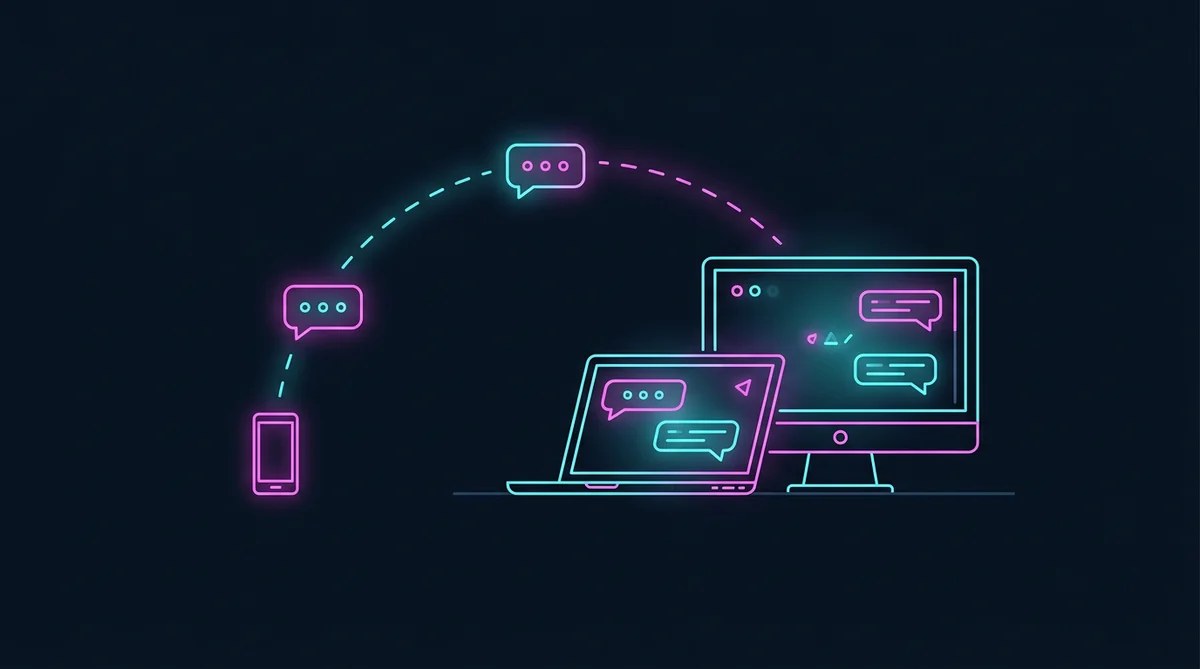
The four routes at a glance
| Route | Works on | Needs the phone on? | Receives the code directly? |
|---|---|---|---|
| Text Message Forwarding | Mac, iPad | Yes, same Wi-Fi or any network | Yes, forwarded from the iPhone |
| Google Messages for web | Windows, Mac, Linux, ChromeOS | Yes, internet | Yes, mirror of the phone inbox |
| Phone Link | Windows 10 and 11 | Yes, Bluetooth plus Wi-Fi | Yes, mirror of the Android inbox |
| Online SMS number | Any browser | No phone involved | Yes, on a rented or shared number |
Everything except the last row mirrors a phone you already own. That is the key limit: if the SIM is dead, lost or in another country, no mirroring trick brings the code back.
1. iPhone to Mac or iPad: Text Message Forwarding
Requirements: an iPhone with iOS 8.1 or later, a Mac with macOS Yosemite or later (or an iPad), the same Apple ID signed in to iMessage on both devices, and both devices online.
- On the iPhone: Settings → Messages → Text Message Forwarding.
- Switch on the Mac or iPad in the list.
- A 6-digit code appears on the Mac; type it on the iPhone. This code is the Apple ID two-factor prompt, not an SMS.
- On the Mac, open Messages. New SMS now appear in the same thread list as iMessage, marked as text messages in green bubbles.
Two limits worth knowing. The iPhone must be powered on and connected, even if it is on mobile data rather than Wi-Fi. And the SMS lives in Messages, so anyone with your unlocked Mac reads your codes; enable a screen lock.
If the switch is greyed out, sign out and back into iMessage on both devices, or check that the iPhone has a working SIM.
2. Android to a browser: Google Messages for web
Requirements: the Google Messages app (the default messaging app on most Android phones since 2021), the phone online, and Chrome 73+, Edge, Firefox or Safari on the computer.
- On the computer, open messages.google.com/web.
- On the phone: Google Messages → profile picture → Device pairing → QR code scanner.
- Scan the code on screen. The browser shows the full message list within a few seconds.
- Tick Remember this computer only on a machine you own.
The mirror stays alive while the phone has data. Close the phone, lose signal or turn on airplane mode and the browser stops receiving. Pairing can be revoked from the same Device pairing menu, which is the first thing to do if you used a shared or work computer.
Samsung phones with Samsung Messages use Call & text on other devices instead, which needs a Samsung account on both devices. Huawei and Xiaomi ship their own equivalents, usually tied to the vendor account.
3. Android to Windows: Phone Link
Requirements: Windows 10 (May 2019 update or later) or Windows 11, the Link to Windows app on the phone, a Microsoft account, Bluetooth and Wi-Fi.
- On Windows, open Phone Link and sign in with a Microsoft account.
- On the phone, install Link to Windows, sign in with the same account and scan the QR code shown on the PC.
- Allow Contacts, Messages and notifications.
- Messages appear in the Messages tab; you can reply from the keyboard.
Phone Link is the closest thing to a native Windows SMS client, but it mirrors the phone: the handset must be on and reachable over Bluetooth or Wi-Fi. iPhone support exists but is more limited and depends on the Windows and iOS versions.
4. No phone at all: an online number
If the number that receives the code no longer exists, mirroring has nothing to mirror. The alternatives are:
- A second number you control (eSIM or a prepaid SIM) that you can keep in a drawer phone, forwarded to a computer.
- An online SMS service that shows messages in a browser tab. Shared public inboxes are readable by anyone who picks the same number, so they suit one-off tests, not bank or email accounts. See receiving SMS online without a SIM.
- A virtual number with a login tied to your account, which is closer to a real second line; the trade-offs are in virtual phone number pros and cons.
Codes issued to a shared inbox are the ones that disappear when a service detects the range, so never attach one to an account you plan to keep.
What you cannot do
- Read SMS on a computer from a number you do not control. No app grants access to another person’s messages, and any site claiming to is a scam.
- Receive SMS without any phone or number. Cloud inboxes are still numbers; something has to own the range.
- Keep codes after the phone is offline. Mirroring is a live link, not a backup.
Security notes for codes on a desktop
A verification code on a big screen is easy for the person behind you to read. Practical rules:
- Lock the computer when you leave it; every mirrored route keeps codes in plain text.
- Do not pair a shared computer; Device pairing in Google Messages and Phone Link both keep a permanent token.
- Bank codes on a desktop browser are fine to type, never to forward. No bank asks you to read a code to a person; see unrequested verification codes when codes arrive unasked.
- If a code never shows up on the mirror but arrives on the phone, the forward is broken, not the sender; check OTP not received.
FAQ
Can I receive SMS on a computer without my phone?
Only through an online number that you rent or that is public. Forwarding and mirroring both need the original phone online.
Does Google Messages for web receive SMS or only RCS?
Both. It mirrors the phone’s default inbox, including SMS, MMS and RCS chats from Google Messages.
Can I get SMS on a Mac without an iPhone?
Not through Apple’s forwarding, which is iPhone-only. Use a browser-based number instead.
Does Phone Link work with an iPhone?
It supports calls and some messages, but the feature set depends on Windows and iOS versions, and it is narrower than the Android path.
Is it safe to receive a bank code on my PC?
Reading it on a machine you control is fine. Never relay it to another person, and never pair a public computer.
What to do next
Pick the route that matches your hardware: Text Message Forwarding for a Mac, Google Messages for web for any browser, Phone Link for Windows. If the phone is gone, the honest answer is a new number you control, not a mirror. Set the forwarding once and test it with a harmless SMS before you rely on it for a login.