 SimSmsBox
Short answer: Authenticator codes are not downloaded from a server — they are calculated on your phone from a secret key stored on that phone. If you switch phones without moving those keys, the authenticator app on the new phone opens empty, and every account protected by it stops letting you in. While you still have the old phone, moving them takes about 10 minutes: use the app’s export / transfer feature or its cloud backup, then confirm each code works on the new phone before you wipe the old one. If the old phone is already lost, you will need backup codes or each service’s recovery process — which takes hours, not minutes.
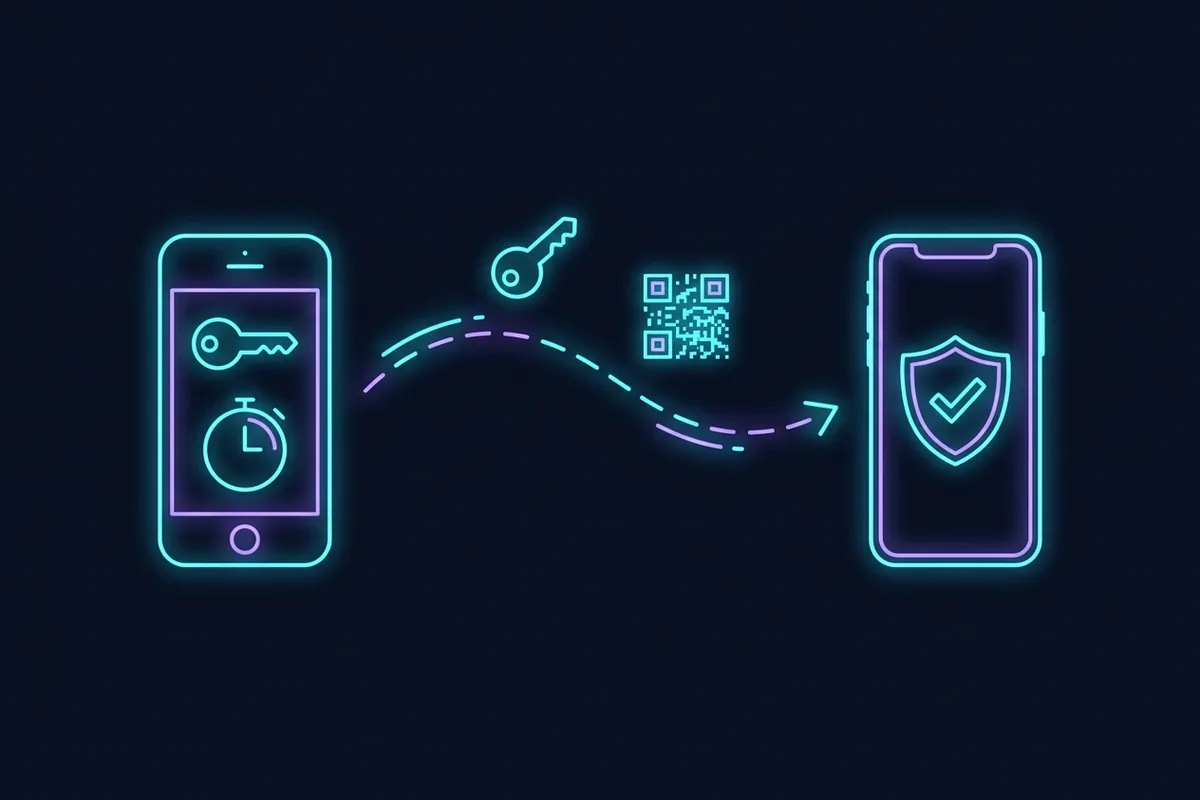
People search “transfer authenticator to new phone” and “lost phone authenticator” usually right after the problem has happened. If you are reading this before you switch phones, you are in the easy situation.
Why switching phones breaks it
When you turned on two-factor authentication, the service showed you a QR code. That QR code contained a secret key. Your authenticator app stored it and, every 30 seconds, combines it with the current time to calculate a 6-digit code. The service does the same calculation and compares. The method is the TOTP standard, RFC 6238 (2011), and the key itself is usually a Base32 string of 16 or 32 characters — the line of letters shown under the QR code as “enter this key manually”. TOTP versus HOTP explains the mechanics.
The key lives only where you scanned it. Installing the same app on a new phone and signing in does not bring it back unless the app was set up to back it up. That is the trade-off that makes authenticator apps stronger than SMS — authenticator app versus SMS covers why — and it is also why a phone switch can lock you out.
What each app offers
| App | Transfer to a new phone | Cloud backup |
|---|---|---|
| Google Authenticator | Export as QR codes | Sync to your Google Account (since April 2023) |
| Microsoft Authenticator | Recovery from backup | iCloud on iOS; personal Microsoft account on Android |
| Authy | Sign in on the new phone | Encrypted backup; desktop apps retired by Twilio in 2024 |
| Apple Passwords (built in since iOS 15) | Moves with your Apple Account | iCloud Keychain |
| Aegis Authenticator (Android) | Encrypted export file | Local or your own cloud folder |
Which situation are you in?
| Your situation | What to do |
|---|---|
| Old phone works, app has a transfer feature | Use export / transfer (fastest) |
| Old phone works, app has cloud backup turned on | Install on the new phone, sign in, check codes |
| Old phone works, no transfer or backup | Re-link each account from its security settings |
| Old phone lost or broken | Backup codes, then each service’s recovery |
Google Authenticator
On the old phone, open the menu and choose Transfer accounts → Export accounts. You need to unlock the phone (PIN or fingerprint) to do it. Select the accounts, and the app shows one or more QR codes. On the new phone, install Google Authenticator, choose Import existing accounts, and scan them. Since April 2023 the app can also sync codes to your Google Account; if you turned that on (a cloud icon at the top of the code list), signing in on the new phone restores them. Check which one you use before relying on it.
Microsoft Authenticator
Turn on cloud backup in the settings of the old phone (iCloud on iPhone, a Microsoft personal account on Android). On the new phone, install the app and choose Begin recovery. Some work or school accounts need to be re-verified after recovery, which is normal.
Authy and other apps with multi-device sync
Authy’s desktop apps were retired in 2024, so a transfer is phone to phone.
If multi-device or backup is enabled, install the app on the new phone and sign in with the same phone number and backup password. Then turn multi-device off again if you do not want other devices to be added.
Apps with no transfer at all
Sign in to each service on a computer, go to its security settings, remove the old authenticator and add a new one by scanning a fresh QR code with the new phone. It is slower, but it works for every service.
The safe order of steps
- Do not wipe or trade in the old phone yet.
- Move the keys using one of the methods above.
- Open each account on the new phone and check that the code is accepted. Not just that it appears — that the service accepts it.
- Save backup codes for every important account somewhere safe and offline. What backup codes are explains how to use them.
- Only now reset the old phone.
If the old phone is already lost or broken
- Use backup codes. If you saved them when you set up 2FA, each one gets you in once. Google, for example, issues sets of 10 codes of 8 digits. Then set up the authenticator again on the new phone.
- Use another 2FA method on the account. Many services also allow a security key, a passkey, SMS or a recovery email. Sign in with that and re-link the authenticator.
- Use the service’s account recovery. Expect identity checks and waiting periods. Account recovery without a phone number explains what these processes usually ask for.
- Work account? Your IT administrator can usually reset your authenticator registration.
Codes on the new phone are wrong
If the codes appear but are rejected, the most common cause is the phone’s clock. Time-based codes depend on accurate time: each code is valid for a 30-second window, and most services accept only 1 window either side, so a clock that is 1 or 2 minutes off fails. Set the date and time to automatic. If that is not it, see authenticator code not working for the rest of the checklist.
Make the next switch painless
- Turn on the app’s backup or sync, protected by a strong password.
- Keep backup codes for every important account.
- Add a second 2FA method — a security key or a passkey — where the service allows it. Passkeys versus SMS explains the options.
- Make a note of which accounts use the authenticator, so nothing surprises you next time.
Common questions
Can I use the same authenticator on two phones? Yes, if you scan the same QR code on both when setting up, or if the app syncs across devices. Both phones will show the same codes.
Does restoring a phone backup bring authenticator codes back? Sometimes, depending on the app and the backup type. Do not rely on it without checking.
Is cloud backup of authenticator keys safe? It is a trade-off: it protects against losing your phone, but the backup becomes something worth protecting. Use a strong, unique password and 2FA on the cloud account.
Will SMS codes still work instead? Only if the account has SMS enabled as a second method. Many people disable it when they add an authenticator.
Wrapping up
Authenticator codes are tied to the phone, not to the app or your account. Move them while the old phone still works, check every code on the new phone before wiping the old one, and keep backup codes so that a lost phone is an inconvenience rather than a lockout.