 SimSmsBox
 Quick answer: When creating a Microsoft / Outlook / Xbox account and phone verification fails, rent an overseas real-SIM number on SimSmsBox and complete SMS verification. Match country to your login environment; use service
microsoft(oroutlook/xboxin the shop if that’s how it’s listed).
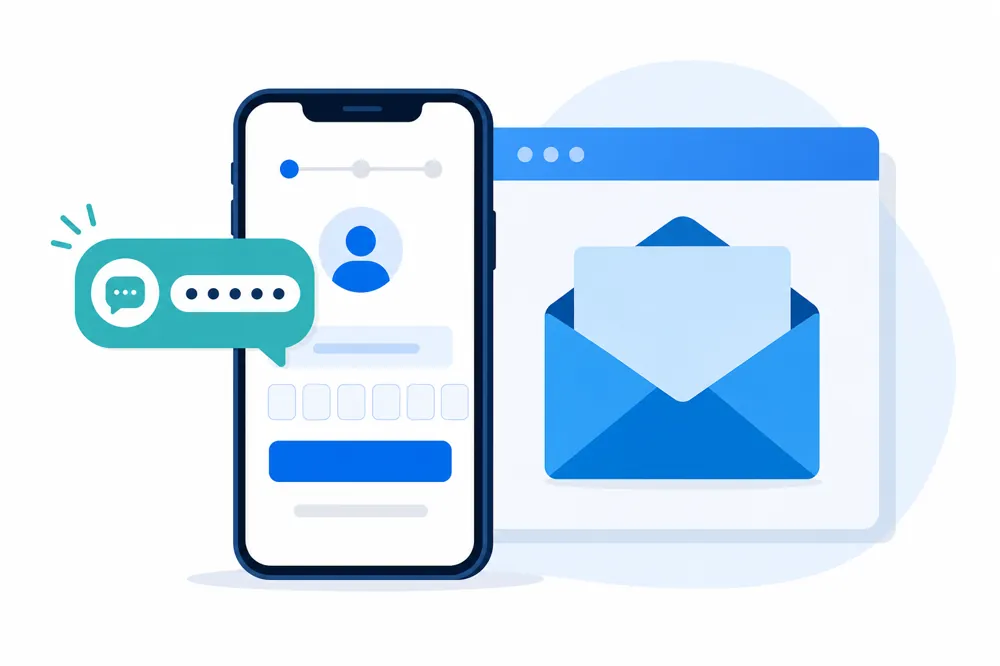
A Microsoft account unlocks Outlook, OneDrive, Xbox, and more. Phone verification is a common blocker — some ranges are filtered, and international SMS may never reach your local line. Receive-SMS fixes “no code,” not Microsoft’s terms of use.
Common blockers
- Carrier blocks international SMS;
- Virtual numbers rejected;
- Too many number swaps in a short window;
- “Call me” selected while your rented number only receives SMS.
Verify with SimSmsBox
Overview: how to use an SMS platform.
1. Reach the phone step
On account.microsoft.com or Outlook signup, finish email/password first.
2. Buy a number
curl -X POST https://api.simsmsbox.com/api/sms/orders/purchase \
  -H "X-API-Key: psk_xxx" -H "Content-Type: application/json" \
  -d '{"service":"microsoft","country":"US","cardKind":"physical","rentDays":30}'
# If needed, try outlook / xbox service keys from the shop
Prefer physical: real SIM vs virtual.
3. SMS only
Enter country code + number correctly; send via text, not voice.
4. Poll the code
curl https://api.simsmsbox.com/api/sms/orders/71 -H "X-API-Key: psk_xxx"Afterward, update security info to a number you control long-term.
Boundaries
- Best for one-time verify / testing, not as the only lifelong security phone;
- Xbox / payment flows are stricter — real SIM + stable environment matters;
- Paid vs free: Do you need a paid SMS platform?.
FAQ
Q: “We can’t send a code to this number”? Reorder with real SIM / another country; confirm shop stock for that service.
Q: Outlook vs Microsoft account? Usually the same Microsoft account identity.
Takeaway
Microsoft phone verification stuck? Use an overseas real-SIM SMS number — nearby country, SMS only, then harden security info with your own phone.